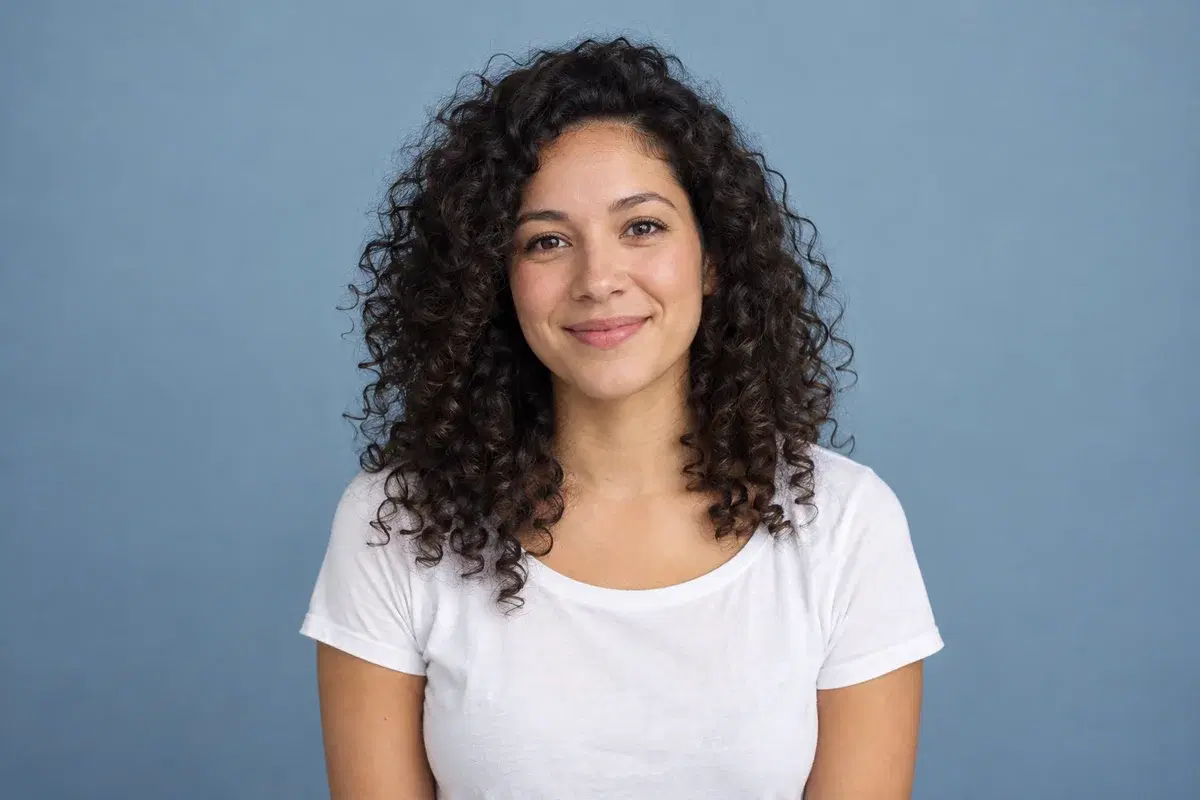
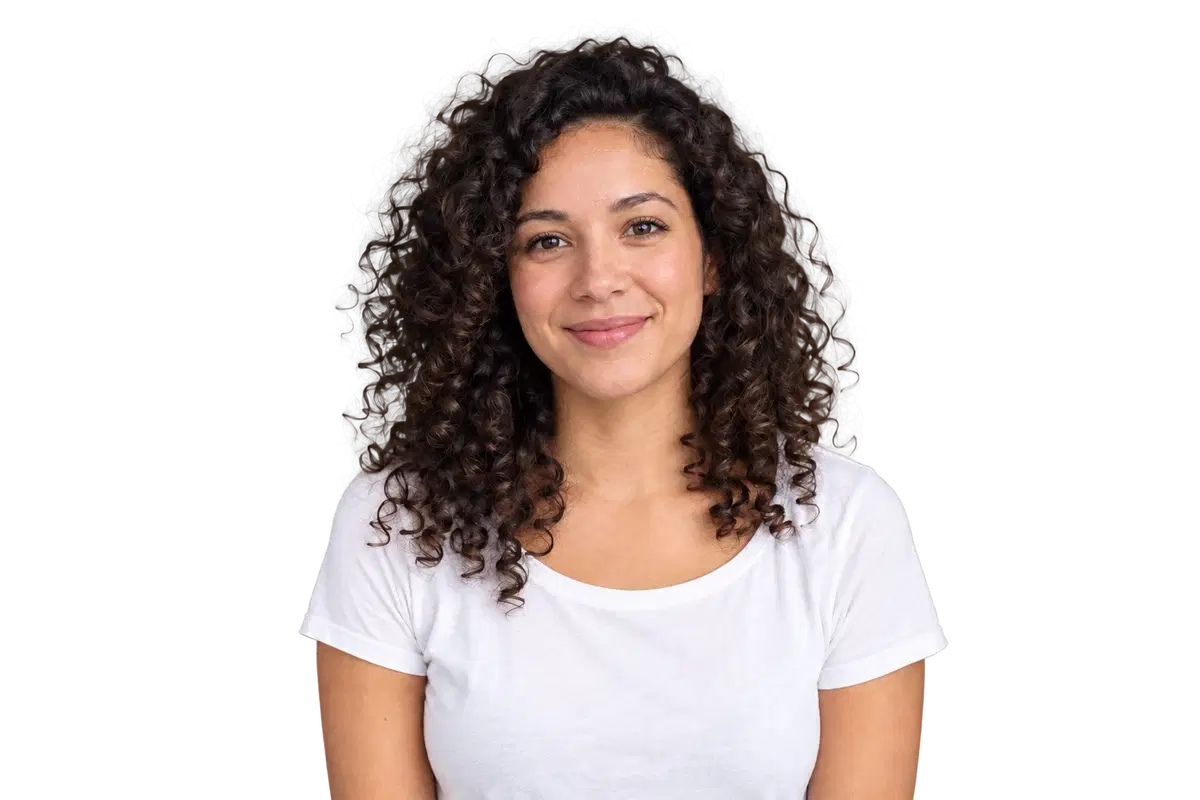
Most people have a photo that is nearly a headshot: good light, a natural expression, and a kitchen behind them. A background replacement turns it into one without a photographer, as long as the photo gives the editor a clean edge to work with.
This guide uses the free editor on this site. It removes the background automatically, lets you put a solid color or another image behind the person, and exports PNG or JPG. It has no brush or feathering, so the choice of source photo does most of the work.
For a profile picture or a résumé, that is enough. For a passport, visa or licence photo, it is not: those have size, position and expression rules that a background change does not address, and the site's ID photo pages cover them separately.
| Use | Background | Why |
|---|---|---|
| LinkedIn profile | Soft neutral or brand color | Reads as a portrait, not a passport photo |
| Résumé or CV | White or light grey | Prints cleanly and matches the page |
| Team page | One color for everyone | Consistency matters more than the color |
| Conference speaker photo | Whatever the organizer asks for | Keep the transparent PNG and export on request |
| Official ID photo | The color the authority requires | Plus size, head position and expression rules |
Which photo gives a clean hairline?
The editor separates the person from the background automatically. Hair is where that separation is hardest, and it is also the first thing a viewer notices on a headshot.
- Stand a step away from a plain wall in a color that differs from your hair. Dark hair on a white wall or light hair on a mid-blue wall both work; dark hair on a dark bookshelf does not.
- Use soft, front light from a window. Hard light from the side casts a shadow onto the wall that the matte can keep as part of you.
- Keep the whole head and shoulders in frame with margin. The editor has no crop, so frame the shot you want before uploading.
- Upload the original JPG, PNG or WebP, under 20 MB. A screenshot of a photo is already compressed twice and loses the fine hair detail the matte needs.
How do you choose and apply the background color?
After the removal, switch the background to Color. The presets are White, Blue, Red and a near-black; the color picker takes any value, which is how you match a brand color exactly for a team page.
Judge the color with the face, not on its own. A saturated preset behind a pale face can look like a stamp; a softer custom color often reads as a portrait. If the destination will show the photo small, in a comment thread or a staff list, a lighter background keeps the face readable.
What should you check before exporting?
Use Compare and zoom to 1× to 4× around the hair, the ears, the collar and the shoulders. Then look at the result on the chosen color rather than the checkerboard: a faint fringe of the old wall that the preview pattern hid is obvious on a flat color.
If a fringe is there, change the photo rather than the settings. The editor has no edge tools, and a second photo against a better wall is quicker than fighting the first one.
Which file should you upload?
Download JPG for LinkedIn, a résumé or a team page. The export draws the cutout on the chosen color and saves at quality 0.94, which is what those destinations expect.
Download PNG as well if the color might change: a rebrand, a new template, a conference that wants a different backdrop. The PNG keeps the transparency, so the next version is an export, not another removal.
Why is an official ID photo a different job?
A passport or visa photo specifies more than a background color: the print size, the head height within the frame, a neutral expression, eyes open, no glare on glasses, and often a plain light background in a particular shade. A background replacement handles one of those rules.
The site's ID photo tool and the passport photo size reference cover the dimensions and the official sources for each country. Use them for anything you will submit to an authority, and use this guide for photos that only need to look professional.
What about a whole team?
The browser editor handles one photo at a time, with a short limit of six removals a minute from one browser session. For a team page of twenty people that is fine; for a company directory it is slow.
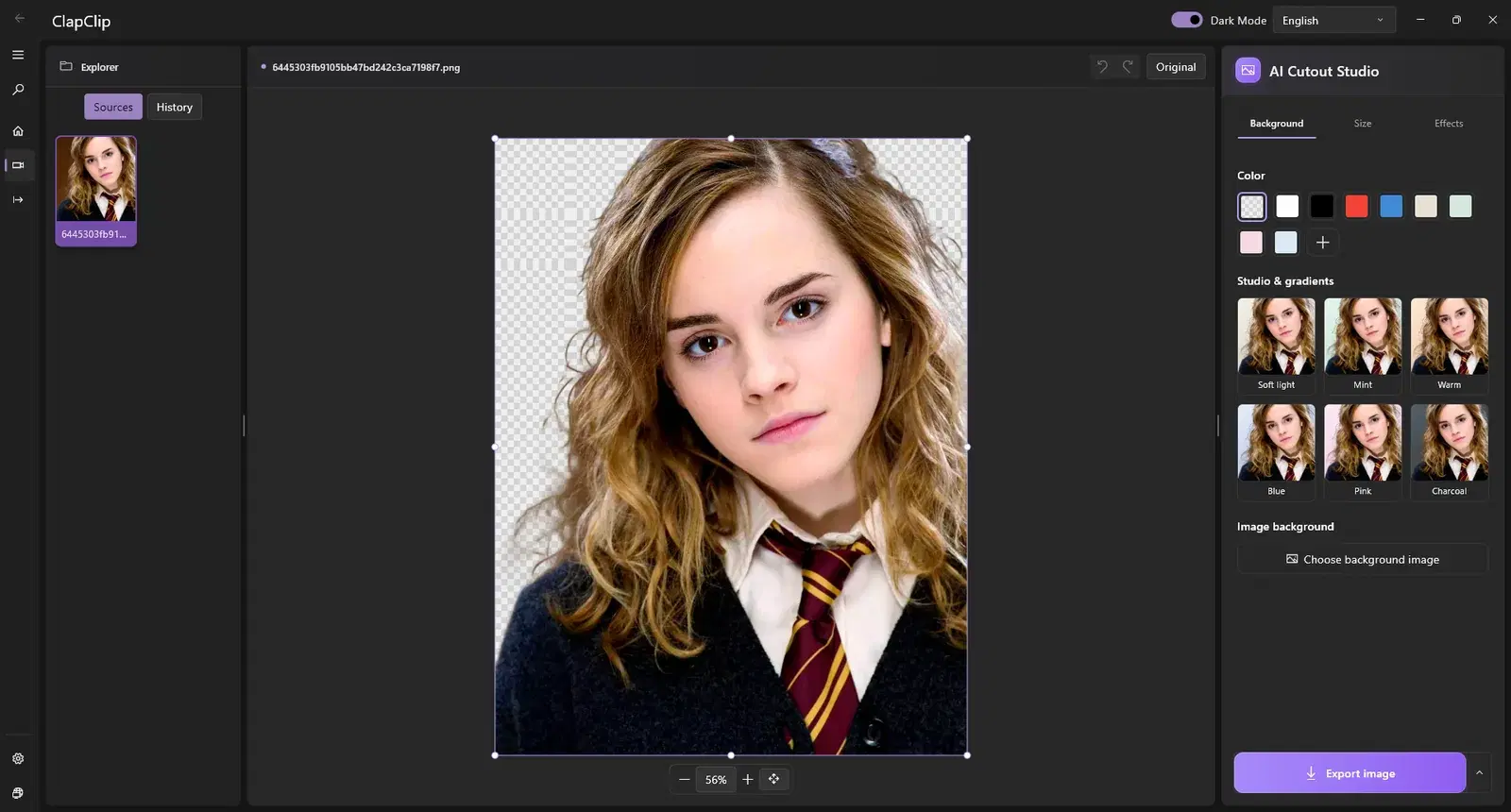
The ClapClip app for Windows processes a folder as one batch with the same background on every photo, and supports custom sizes including ID photo sizes, which matters when the directory template wants every portrait at the same dimensions.
Windows 10/11 · Free to download